Short answer
How to change your Google business hours: sign in to the linked Google account, open your Business Profile on Search or Maps, then select Edit profile and Hours. Set each open day's times and save. Google reviews the edit first, usually in about 10 minutes, sometimes up to 30 days.[1][2][3]
Google's Business Profile help pages on editing profiles and hours, fetched 22 November 2026.

On this page
How to open the editor
Sign in
Use the linked Google account.[1]
Find your profile
Open it on Search or in Maps.[1]
Select Edit profile
In the Maps app, tap Business, then Edit profile.[1]
Save
Select Save after your changes.[1]
The editor opens with tabs: About, Contact, Location, Hours, More.[2][4]
If an older guide sends you to an Info tab, look under Edit profile instead; that's where the business information sat when we checked on 21 November 2026, behind a button with a pencil icon in your profile's panel. This step-by-step guide uses those names.
No profile yet? List your business on Google first.
How to change your business hours
Main hours are your regular customer-facing hours for a normal week. Seasonal? Use your current seasonal hours as the regular ones.[5]
Open the hours tab
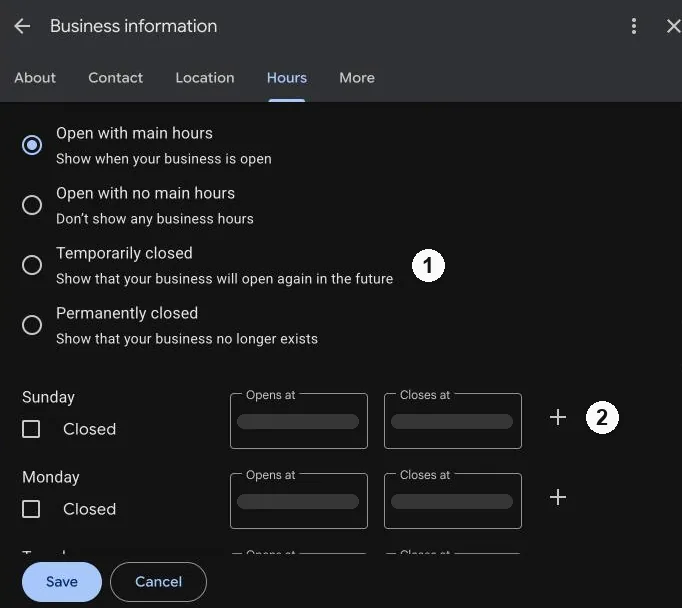
Go to Edit profile, then Hours.[2]
Turn on main hours
Next to Hours, select Edit, then Open with main hours.[2]
Tick your open days
Check the box for each open day.[2]
Set the times
Use the dropdowns for each day.[2]
Save
Click Save.[2]
Closed for lunch? Give that day two entries with different times.[2]
Open round the clock? Set Opens at to 24 hours. Rather not show hours? Choose Open with no main hours.[2]
The Generate hours box fills in the days from plain words: open Mon-Fri, 9AM-5PM but closed for lunch 1PM-2PM.[2]
Special hours for holidays
Special hours cover a brief change: a holiday, an event, or a closure of six days in a row or fewer. Regular hours stay put.[6]
Open Special hours
Next to Special hours, select Edit.[6]
Pick the date
Select Review, or Add a date.[6]
Set the day
Open? Uncheck Closed and enter your times. Closed? Keep the box checked.[6]
Save
Hours appear only on the days you set.[6]
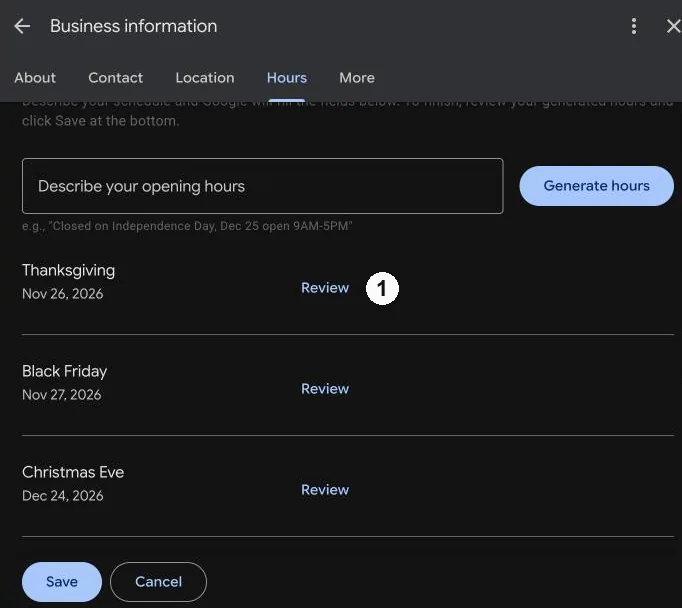
Google lists the holidays coming up; set them even when they match your usual hours.[6]
Our advice: add special hours a week or two before each holiday, so customers who check Google during the holidays see the right times. Use them for a staff day or a bad-weather close too.
Separate hours for one service: More hours
Some businesses keep different hours for one service: delivery, takeout, drive through or pickup. Google calls these More hours, and you set them for specific services alongside your regular hours.[7]
Open the Hours tab
Go to Edit profile, then Hours.[7]
Pick a type
Under Add more hours, choose the type you want, such as Drive through.[7]
Set the days and times
Select the days and set the hours that apply, then click Save. Each type is set separately.[7]
One rule and one guideline: More hours don't display until you've set regular hours, and Google advises setting them as a subset of your main hours. Its example is a restaurant open 6 AM to 9 PM with takeout from 10 AM to 6 PM.[7]
Don't confuse them with special hours. More hours set a weekly schedule for one service; special hours change your hours on specific dates, like a holiday. For a service with its own times, Google points you to More hours rather than special hours.[6]
Change your phone, website or address
Phone and website sit in the Contact tab. Besides your main number, you can enter up to 2 more phone numbers, mobile or landline, not fax.[1]
For the website, enter the full URL, including http:// or https://.[1]
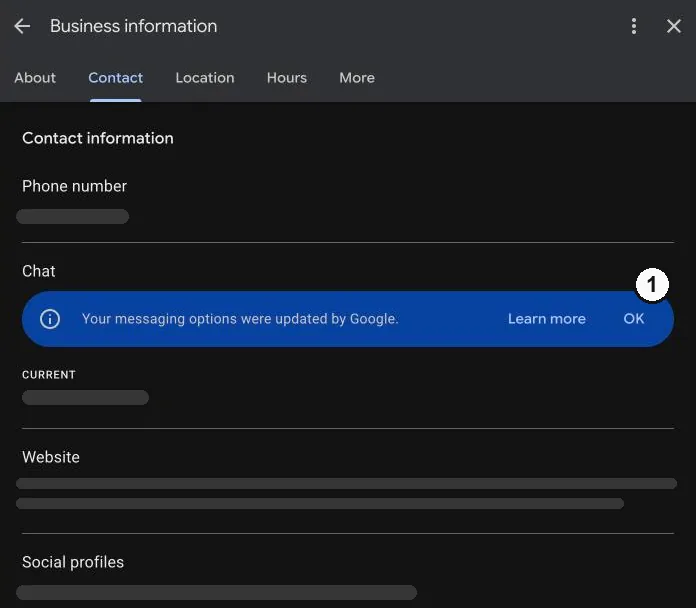
Your address is public on the profile. Use a precise, complete street address, with suite or floor numbers.[4][5]
A service-area business, one that visits customers, can hide the street address and show a service area instead. For a contractor, Google Business Profile for contractors covers the whole setup.[1][4]
Change your business name
Your name on Google should be your real-world name: the one on your storefront, website and stationery, and the one customers know you by.[5]
Change it under Edit profile, About. If you change the name after the profile is verified, you might need to verify your business again.[1]
Make sure the new name matches your sign before you save. Don't add a city or a service to it: Google says including unnecessary information in your business name isn't permitted and could result in the suspension of your Business Profile.[5]
Worked example · made by Local Biz Legends
Worked example: which edits does Google check?
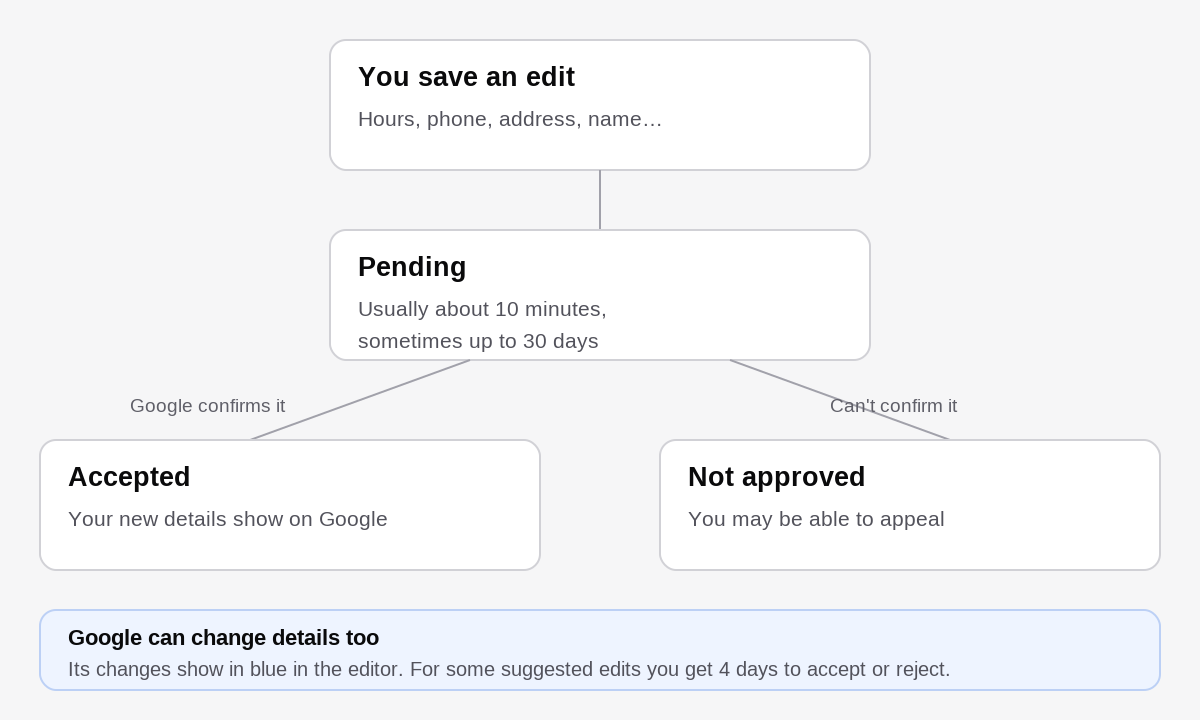
Edits you save on a verified profile are reviewed first. The table shows where each edit lives and what happens after you save.[3]
What happens after you save
Not verified? You can still edit your name, category, address, hours, phone and website. To edit the rest, verify your Business Profile.[3]
Why does Google keep changing my business hours?
Not a glitch: Google gathers info from user reports and licensed content, and may update your profile when they say it's incorrect or outdated.[8]
Users can suggest edits too. Some you hear about first: accept or reject within 4 days, or Google may publish it anyway if your website supports it. So keep the hours on your own website correct too.[8]
Your edit didn't stick? Check:
- The edit's status: pending means still under review.[3]
- Blue text in the editor: a change made by Google.[8]
Google may also call or text your verified number to confirm details. If someone calls, know the real ones from the scam ones.[1]
If your business isn't appearing at all, that's a different problem: why it isn't showing on Google Maps.
How long does it take to change business hours on Google?
Most edits clear review in about 10 minutes; some reviews take up to 30 days. So Google doesn't update your profile in real time: check the edit's status before you assume it failed.[1][3]
Each edit shows one of three statuses:[3]
- Accepted: your updated info displays on your Business Profile.[3]
- Not approved: Google couldn't confirm the change's accuracy; you may be able to appeal.[3]
- Pending: still under review, usually about 10 minutes, sometimes up to 30 days.[3]
If you'd rather someone else handled your Google profile, see how we work with independent businesses.
Related help for owners
Rather have it done for you?
Get found everywhere people search. We do the work.
Questions owners ask
How do I edit business info on Google?
Sign in with the linked Google account, open your Business Profile on Search or Maps, and select Edit profile. On a phone, the Maps app works too: tap Business, then Edit profile. Make your changes and select Save. Hours sit under the Hours tab.[1][2]
Do I need a verified profile to change my hours?
No. If you haven't verified your profile, you can still edit some details: your business name, category, address, hours, phone number and website. To edit all your info, verify your profile. Until then, keep the details you can edit current and correct.[3]
What's the difference between special hours and marking the business closed?
Special hours are for short changes: a holiday, an event, or a closure of six days in a row or fewer. They keep your regular hours and show only on the days you set. Closed for 7 or more days in a row, or for an unknown period? Mark the business as Temporarily closed instead.[6]
My edit came back as not approved. What now?
Not approved means Google couldn't confirm the change's accuracy. Check what you entered against the real world: the hours you actually keep, the name on your signage. If the detail keeps reverting, blue text in the editor marks a change made by Google.[1][3][8]
How we checked this
We checked every menu path against Google's Business Profile help pages on 21 November 2026; the screenshots show the editor as it stood on 21 November 2026.
Read our methodSources
Numbered in the order this page cites them.- 1Nov 21, 2026
- 2Nov 21, 2026
- 3Nov 21, 2026
- 4Nov 21, 2026
- 5Nov 21, 2026
- 6Nov 21, 2026
- 7Nov 21, 2026
- 8Nov 21, 2026