Short answer
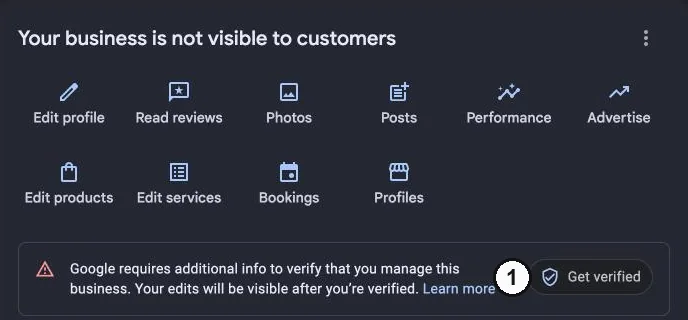
Google My Business verification is Google checking that you really run the business on a profile. You verify from the profile itself: select Get verified, then complete the method Google offers you, such as a code by text or a video of your premises. Until the profile is verified you can't edit its info or interact with customers.[1]
Google's own help page on verifying a Business Profile, read on 21 November 2026.
On this page
Do you have to verify your business on Google?
Only if you want control of it. Google requires verification before you can edit your info or interact with customers, and verifying is how you gain ownership. That includes replying to your Google reviews.[1]
Search for your business on Google Maps first to see what's there. If it's a review you want dealt with, how to remove a Google review is the guide for that. If your business doesn't show up at all, why your business isn't showing up on Google goes through the checks in order. And if a caller says your listing needs verifying, read how to tell Google's calls from scam calls before you press anything.
The verification methods Google may offer
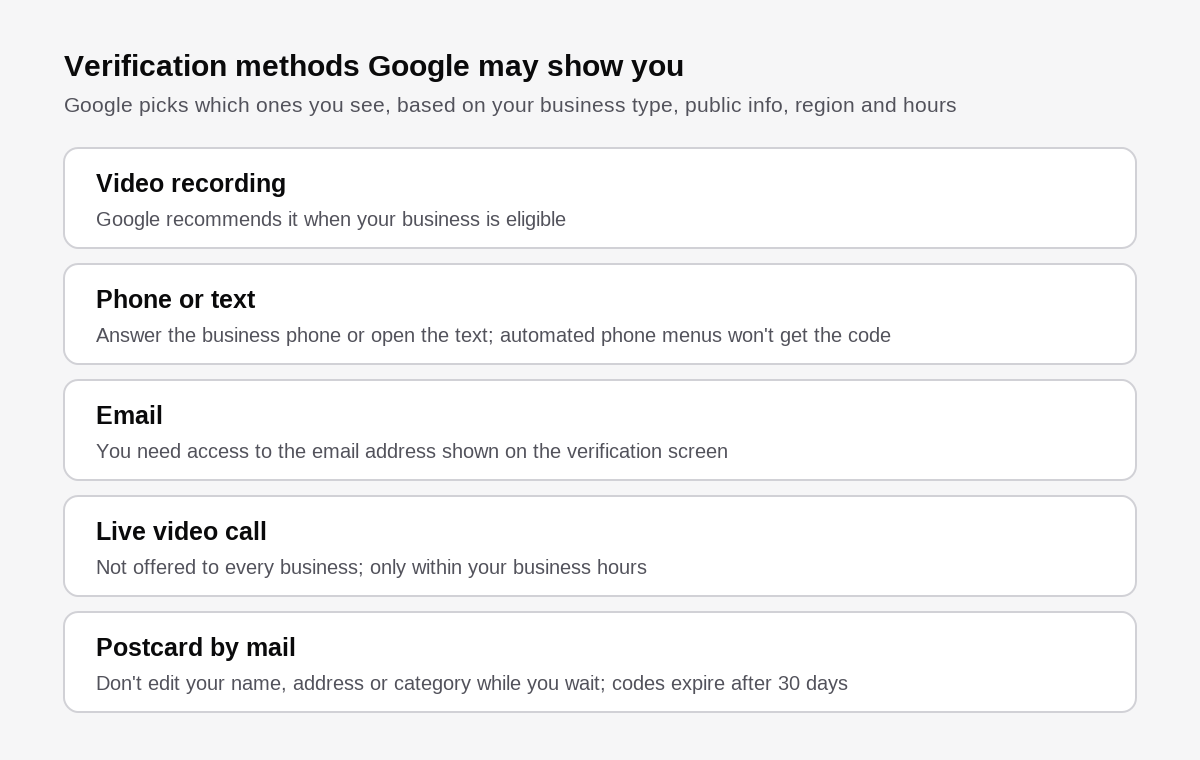
What you're offered depends on your business type, public info, region and business hours; some businesses need more than one method.[1]
If video verification is on your list, Google recommends taking it.[1]
- Video recording: one unedited, complete take with no breaks, filmed live on your phone and uploaded from your profile.[2]
- Phone or text: a code to your business phone. Menu systems won't get the code, so answer it or receive texts.[1]
- Email: a code to an address on the verification screen. Make sure you can open that mailbox.[1]
- Live video call: you show your location and ownership to a support rep, during your location's business hours.[1]
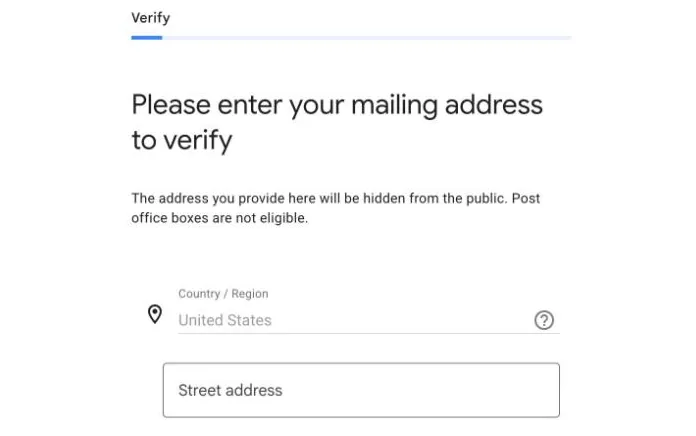
- Mail: a postcard with a code to your business address, which you enter on your profile to confirm the business is there.[1]
How to verify, step by step
If your business isn't on Google yet, add it first; our guide to listing your business on Google covers that.[1]
Find your profile
Sign in with the Google Account the profile is tied to, then search for your business name and city.[1]
Select Get verified
Open the profile and choose Get verified, then work through the options Google shows you.[1]
Finish the method you're given
With a code, answer the call or open the text, then enter the code on your profile.[1]
Wait for Google's review
Google reviews what you provided; it says this can take up to 5 business days, longer on rare occasions.[1]
A confirmation email lands in your Google Account when it's done.[1]
Worked example · made by Local Biz Legends
Worked example: which route fits your business?
What Google asks depends on your business type. Three situations owners actually run:[2]
Three businesses, what to have ready
- A bakery with a shop front
- What Google checks: The shop is where the profile says, your name on a permanent sign
- Have this ready: A one-take phone video: street signs and building numbers, your signboard, then the till or kitchen[2]
- A plumber working from home
- What Google checks: That the business really runs from that address
- Have this ready: Landmarks and signs near your home, your tools or branded van, a permit or bill matching the profile name[2]
- A mobile groomer in her first month
- What Google checks: No profile on Google yet
- Have this ready: Add the profile through Google's add flow first, then select Get verified[3]
If you don't have a storefront
Plenty of solid businesses have no physical storefront. Google calls these service-area businesses: one profile for your base, with a service area drawn around it.[4]
If you run yours from home, hide the street address from customers. Contractors can follow our setup guide for contractors for the service area.[4]
- Don't list an address you don't serve customers at.[2]
- A rented mailing address you don't operate from, a virtual office, isn't eligible.[4]
- A co-working desk only counts with clear signage, customers during business hours, and your own staff on it.[4]
- Keep the service area honest: Google's rule of thumb is about two hours of driving time from your base.[4]
If verification stalls or is declined
When the Get verified button appears again, Google couldn't completely verify your business. Try re-verifying from there.[1]
A Review issues notification on a video means it wasn't accepted. The reasons Google lists are:[1]
- Your business name wasn't visible on the storefront.[2]
- No nearby area was shown around the location.[2]
- The video missed proof you're authorized to operate the business.[2]
Before trying again, run through the profile. The checks Google's guidelines point at:[4]
- Your name is your real-world name, as on your sign, website and stationery.[4]
- You're using the fewest categories that describe your core business.[4]
- Your address or service area is precise, for a place you really operate.[4]
- You're signed in with the Google Account the profile is attached to.[1]
- One profile per business, not two; resolve any duplicate before verifying again.[4]
If Google asks for more info to re-verify, that's usually because your details were recently updated.[1]
Still stuck in the verification process? Google suggests trying your other available methods first, then its support team.[2]
If you'd rather someone else handled your Google profile, that's part of what we do.
Related help for owners
Rather have it done for you?
Get found everywhere people search. We do the work.
Questions owners ask
What if I don't have a physical address for my business for Google?
You can still have one. Google calls a business that goes to customers a service-area business: keep one profile for your base, hide your street address, and set service areas you actually cover. If you verify by video, film the landmarks and signs of your own neighborhood. Don't borrow an address: a rented virtual office isn't eligible.[2][4]
How do I check my Google business verification?
Sign in to your Business Profile and look for Get verified: if the button is still there, Google couldn't completely verify your business yet. Google says the review can take up to 5 business days after you finish the steps, and you get a confirmation email when you're verified. A Review issues notification on a video means it wasn't accepted.[1]
Which verification method will I get?
Google decides. It picks your options from your business type, public info, region and business hours, and you can't swap in one it hasn't offered. If video is among them, Google recommends it. Some businesses also need more than one method to finish.[1]
Does Google charge to verify a business?
Google says you can add or claim your business at no charge. Be wary of anyone cold calling to sell you verification: Google will never ask for your verification code, so a caller fishing for it is a warning sign. If a stranger offers to verify your profile for a fee, decline, and use Get verified on your own profile.[1][3]
How we checked this
Every fact on this page comes from Google's Business Profile Help: its pages on verifying a business, video verification, the guidelines for representing your business, and adding or claiming a profile, all read on 21 November 2026.
Read our methodSources
Numbered in the order this page cites them.- 1Nov 21, 2026
- 2Nov 21, 2026
- 3Nov 21, 2026
- 4Nov 21, 2026